Get Started
This walkthrough takes you from zero to downloading your first chapters.
1. Install the plugin
- Download
komga.koplugin-vYYYY.MM.DD.zipfrom the Releases page. - Extract the
komga.koplugin/folder into KOReader's plugins directory:- Kobo:
.adds/koreader/plugins/komga.koplugin/ - Other devices:
<KOReader data dir>/plugins/komga.koplugin/
- Kobo:
- Restart KOReader.
2. Create a Komga API key
In Komga, open Account Settings → API Keys and create a key (or call
POST /api/v2/users/me/api-keys). Copy it — you'll paste it in the next step.
3. Configure the server
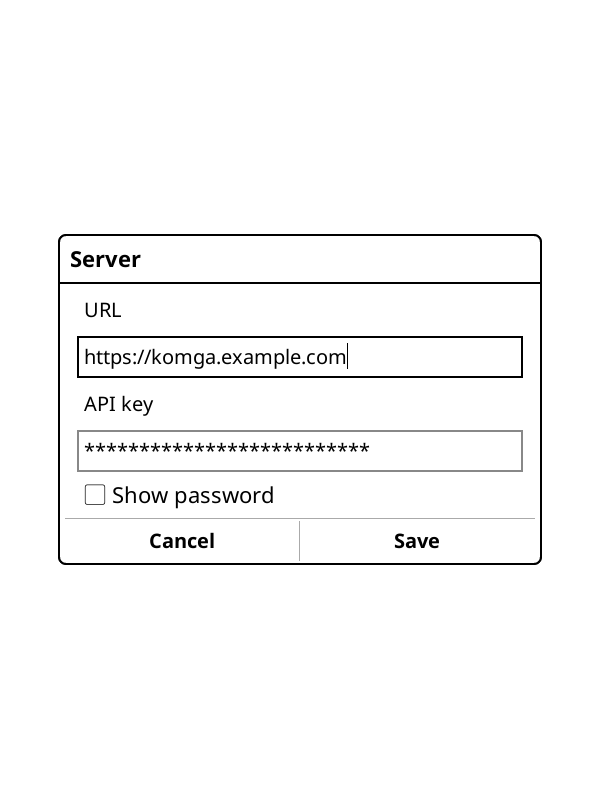
Open the top menu → Komga → Settings (under Tools), enter your server URL and API key, then tap Save.
Note
The key and server URL are stored in plaintext in KOReader's settings file — KOReader
provides no credential encryption. The key is transmitted only in the X-API-Key request
header and is never placed in a URL or written to logs; it is masked in the config dialog
(password field). On a shared device, rely on device-level access controls.
4. Open the home hub
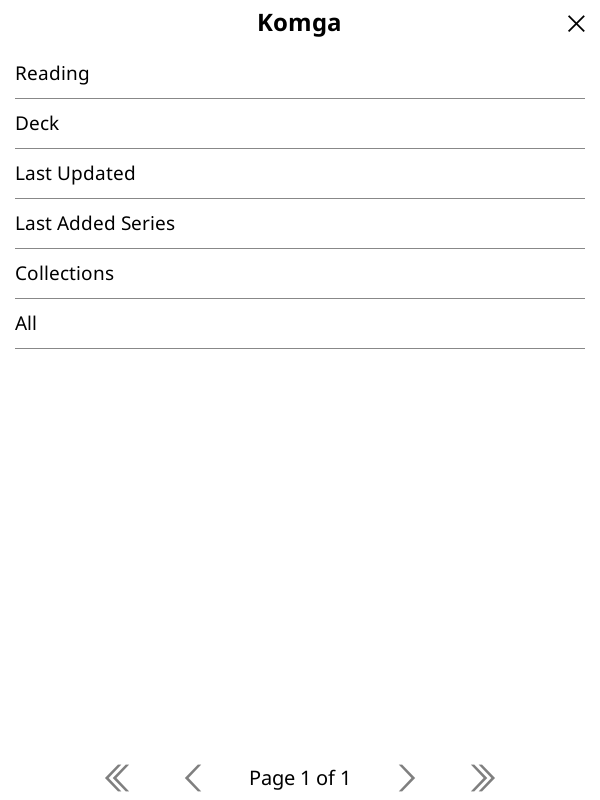
Komga → Browse & download opens the home hub with its six modes. (You'll be prompted to enable Wi-Fi if you're offline.)
5. Find your chapters
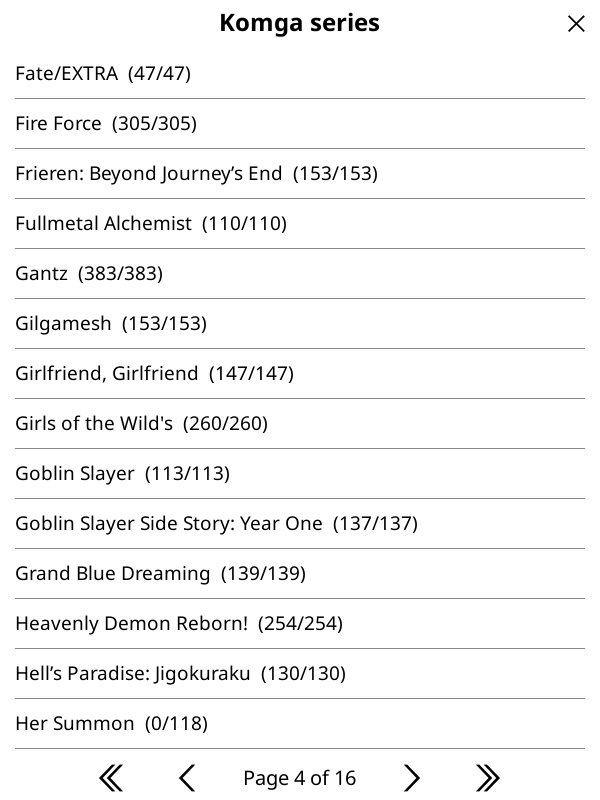
Pick a series mode — for example All — to get a series list. The first row searches by name; tap a series to open its chapters.
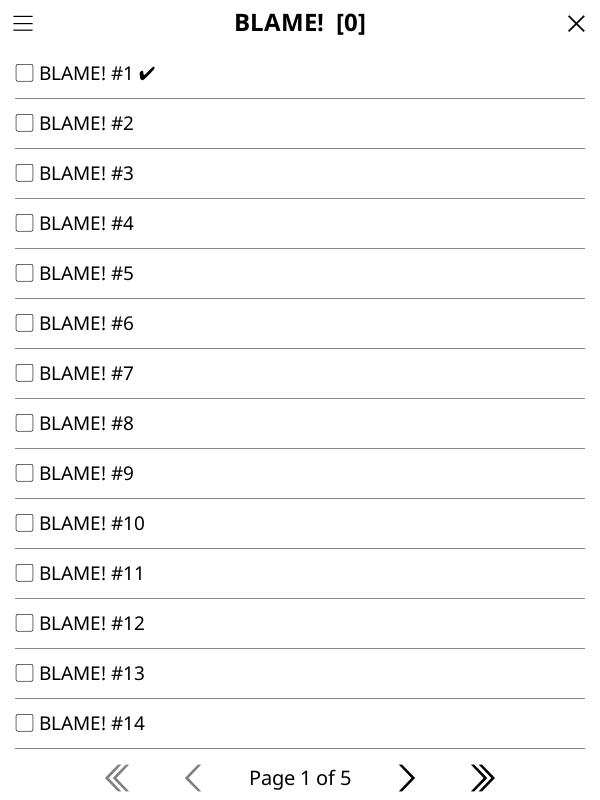
Each chapter row shows a checkbox (✓/▢), the title and number, and a status:
✔ read, … in progress, ⤓ already on the device.
6. Select and download
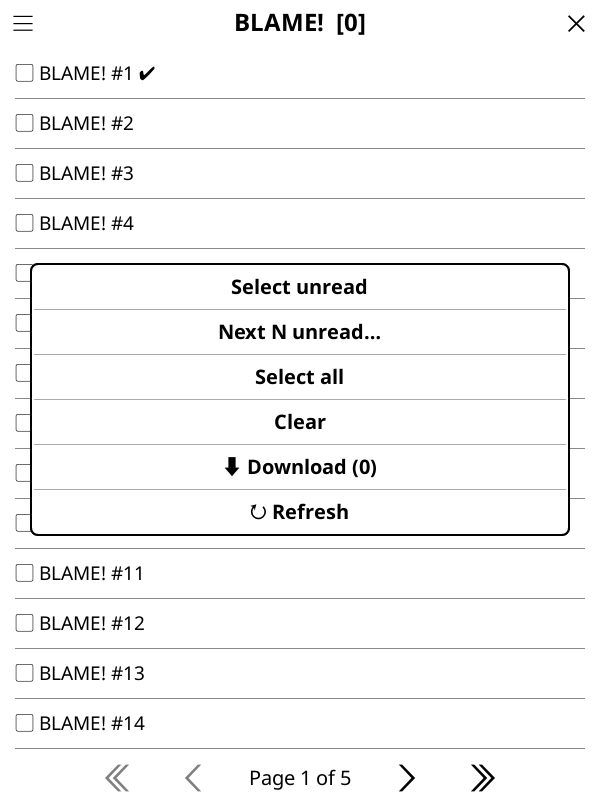
Tap the menu icon in the title bar (visible on every page) to open the actions popup — Select unread, Next N unread…, Select all / Clear, ⬇ Download (the button shows the selected count), and ↻ Refresh. Choose what to grab, then tap Download.
A progress popup runs; tap it to stop between chapters. When it finishes you get a summary of downloaded / skipped / failed counts and the destination folder.
7. Where files go & sync
Downloads land in ‹download root›/Komga/‹Series name›/‹NNNN›.cbz. Reading progress syncs
back to Komga automatically if your KOReader↔Komga sync is set up. See Usage for
the full detail on file locations, the browse modes, and the sync requirements.